Nortantis Updates (Version 3.18)
This release covers a lot of ground. The biggest areas are improvements to text, a complete overhaul of icon coloring and editing (including multi-select), non-English language support, and many quality-of-life improvements throughout the app. And I’d like to add a huge thanks to my wife Julie for the new hand-drawn decorations she contributed to this release.
Text
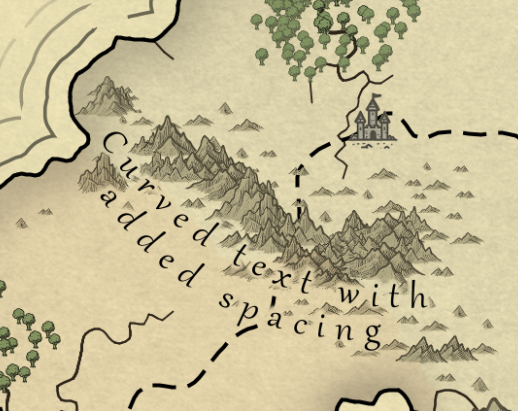
Curving — Text labels can now be curved into an arc or circle, up or down. When you select text in the Text tool, you'll see a "Curvature" slider that lets you control the angle of the arc. Positive values curve the text upward, and negative values curve it downward. This is great for labeling mountain ranges, forests, and other features that run along a curve.
Spacing — A new Spacing slider lets you spread out the letters of a text label. This is useful for region names that need to span a large area of the map.
City Text Type — Cities now have their own dedicated text type in Theme panel (the panel on the left), under Fonts, separate from "Other mountains" text. This gives you independent control over the font, size, and style used for city labels versus other types of labels.
Color Overrides — You can now override the font and color for individual text labels via the Text tool. In Edit mode, click on a text label to select it, and you'll see options to override the default font and color.
Background Fading — There's now a slider to control how much icons and border lines fade into the background around text.
Hover Highlight — The Text tool, in Edit mode, now highlights whichever label your mouse is hovering over, similar to how the Icons tool highlights icons on hover, making it easier to see which label you're about to click on. Also, the algorithm for deciding which text label to select when multiple overlap is improved.
Grid Overlays
In the left panel, in the Background tab, you can now overlay a grid over the map, which is useful for table-top gaming. You can choose between square grids, hex grids, or a Voronoi polygon overlay that shows the underlying graph structure of the map.
Borders
In the Border tab, there's a new border position option "Draw Over Map." When selected, the border draws on top of the map rather than around it. This prevents the border from changing the aspect ratio of your map, at the cost that it covers the map on the edges.
Icons
Rearranged Icons Tool — The Icons tool panel has been reorganized to be more compact and easier to use. As part of that, the “Art pack” dropdown is now closer to the icons it makes available.
Toggle Buttons for Edit and Erase Mode — The Edit and Erase modes in the Icons tool now use toggle buttons that support multiselect to select which icon types are affected. The old "All" option has been replaced with a "Select All" button.
New Decoration Icons — Julie drew a set of new hand-drawn decoration icons to replace the AI-generated ones that shipped previously. The new artwork includes:
Creatures: dragon, mermaid, octopus, sharks, sea serpent
Ships: seven ship variations plus a sinking ship
Other: anchor, sea chest, X marker
Compass Roses
This change means the base Nortantis with no added art packs no longer contains AI art, which makes it easier to create and share maps in places that restrict AI usage.
A note regarding compass roses - The compass images in both the installed art and the bonus art pack have been renamed from "compasses" to "compass roses," and the folder has been reorganized accordingly. If your map used compass icons, they will be automatically replaced by “compass rose” icons the first time you open your map in the new version of Nortantis.
Icon Coloring — Icons can now be colored from within Nortantis without having to color the PNG images on disk. From the Icons tool, there are 2 ways to color icons, and both can, and often should, be used together:
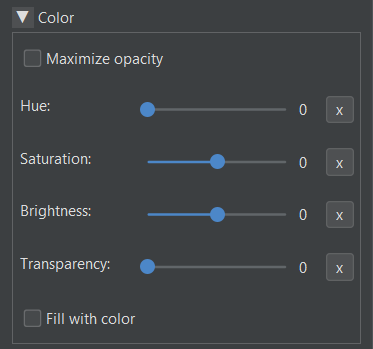
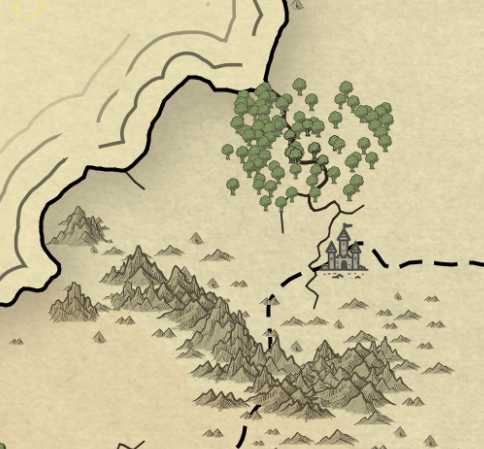
Filter color — That’s the Hue, Saturation, and Brightness sliders above. They filter the existing colors of icons. Note that if the icons’ original color was black, you won’t see much change to the color unless you turn up the brightness. The Maximize opacity checkbox is for removing pre-existing transparency on icons so you can make them as opaque as you want.
Fill color — Checking the “Fill with color” checkbox allows you to select a fill color. Cities and decorations use a flood fill, starting from the icon’s corners. Mountains, hills, dunes, and trees, which are often open on the bottom, can’t use a flood fill, so the fill algorithm uses the intersection of 3 silhouette projections (from left, right, and above). It’s the same algorithm that was previously used, and is still used, to create icon content masks.
Determining Icon Color in Colored Regions— Icons placed on colored regions now draw using the color of whichever region their center is in, instead of splitting their color they straddle a region boundary.
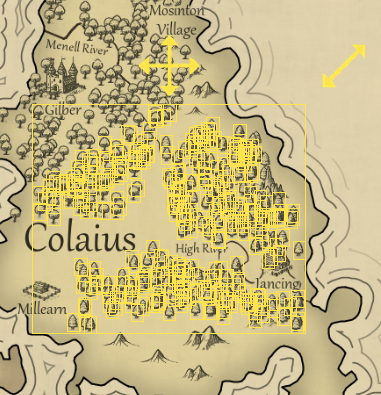
Multi-selecting trees in Edit mode
Edit Mode Multi-Select — You can now select multiple icons at once in edit mode. Click and drag, and all icons the brush moves over will be selected for the selected brush size. You can then move, delete, or copy the group.
Copy, Paste, Delete, and Reset Scale — Edit mode now supports copy/paste (Ctrl+C / Ctrl+V), a Delete button to remove selected icons, and a "Reset Scale" button that restores icons to their original size.
Icon Metadata — When you select an icon in Edit mode, the Icons tool panel now shows metadata about it, such as its type and art pack.
Decoration erasure — Decoration icons now erase the content drawn behind them, consistent with how city icons behave. This makes them draw with a better illusion of depth when drawn on terrain with other icons behind them.
Erase Mode Highlighting — When using the Erase brush, icons that are about to be erased are now highlighted so you can see exactly what will be removed before you click.
Larger Default Icon Sizes — The default size for icon types has been changed from 5 to 6, making icons slightly larger on new maps. This does not change existing maps.
Panning with Shift — Because I needed to use Ctrl key interactions for multi-select in Edit mode, map panning (click and drag to scroll the viewport) has moved from the Ctrl key to the Shift key. Middle-mouse-button panning still works as before.
Art Packs
Setting Alpha from Image Folders - Art pack authors can now set the default transparency for images by including “a<number>” or “alpha=<number>” (without the quotes) in the file name, where the number is between 0 and 255. For example, a file named “tree 1 alpha=128.png” would draw at 50% opacity (not including any opacity the image already had). Also, like with sizes encoding in file names, if only one file in the folder has this set, the other files inherit the same value, so you only have to set this value once per folder if desired.
Art Pack Settings File — Art packs can now optionally include a settings.txt file in the root of the zip. Currently, this supports one property: “requiredVersion”, which lets art pack authors specify the minimum version of Nortantis needed to use the pack. If a user tries to install a pack that requires a newer version, they'll see a helpful error message.
Bonus Art Pack Version 2:
The mountain icons from my art pack tutorial are now included.
The sheep decoration has been scaled down slightly. If you used it, then if you update your bonus art pack, you’ll need to scale the sheep bigger if you want to keep its original size.
Mountains Adjusted — A few mountains in the installed (nortantis) art pack have been trimmed to remove extra padding that previously existed at the top of the mountain images. As a result, those mountains on existing maps will appear slightly higher up than before.
Language Support
Nortantis now supports multiple languages! The currently supported languages are:
- German
- Spanish
- French
- Portuguese (Brazilian)
- Russian
- Simplified Chinese
If your system language is one of these languages, Nortantis will use it automatically. You also can change the display language manually via the View menu.
All translations were done by AI, since I don't personally speak these languages — so if you spot any errors (or any text I missed), please let me know. If you'd like another language added, feel free to submit an issue at https://github.com/jeheydorn/nortantis/issues. And if you're comfortable with Git and want to submit the translation yourself, the files are Java .properties files located in the src/nortantis/swing/translation/ folder of the repository. Pull requests are welcome.
Things intentionally not translated:
Generated names (and the names of books used to generate text). That would require supporting other languages in Nortantis’s name generator, which would be a much bigger task.
Any errors messages caused by unexpected behavior. I’m most likely the person who will need to read those.
Any text that comes from art packs, such as the names of borders, background textures, icon groups, and icon names. Translating those would require translating art pack folders and files.
Java’s built-in popups for choosing colors and loading/saving files. I can’t translate these because I don’t own their code. I’m hoping Java translates them when running on systems that use a different language.
You may find that for your chosen language and UI theme (View → Theme), the labels and buttons in the left and right panels don’t fit. If that happens, you can drag those panels to make them wider, and Nortantis will remember their width the next time you open the program.
Performance Improvements
Icons now draw faster.
Various smaller performance improvements throughout.
.nort map files are now smaller (about half the size).
Significantly reduced memory usage
Land & Water Tool
The "Paint Region" brush has been removed and replaced by the Land brush, which now handles expanding colored political regions by drawing with the color the mouse starts on, or adding a new region/color using the “New Color / Political Region” button.
Toggle Buttons — This doesn’t just affect the Land & Water tool since the Icons tool and Text tool have the same change, but the brush options in the Land & Water tool have been converted from radio buttons to toggle buttons. This saves vertical space and I think it looks a little better.
Free-hand Road Drawing - The Roads brush now has a Free-hand mode that allows you to place roads wherever you want, instead of being constrained to place their control points on polygon centers. Read the tooltip of the Free-hand button for instructions on how to use it.
Region Color Generator - The Saturation and Brightness settings in the region color generator now use a 0–100 scale instead of 0–255, which is more intuitive and better matches the filter color settings in the Icons tool.
New Options for New Maps
Custom Aspect ratios — Previously when creating a map, you had to pick an aspect ratio of either square, 16:9, or golden ratio. Now, there is a fourth option for Custom, which allows you to pick any aspect ratio between 1:10 and 10:1.
Simplified Land Shape Options — Previously, land shape was determined by the “Edge land probability” and “Center land probability” sliders. Now, you can choose from the “Land shape” dropdown, which has the options Continents, Inland Sea, and Scattered.
Number of Political Regions — Instead of the number of political regions being random and loosely based on the world size, you can now choose the number of political regions by changing the “Number of regions” slider.
Bug Fixes
Rivers that run along the boundary between two political regions now draw using the river color, rather than using the region boundary color.
Fixed a bug where certain fonts were not saved and loaded correctly.
Fixed icon previews being generated twice when opening a new map. This was a minor performance issue.
Fixed the art pack dropdown in the Icons tool shrinking when switching between tools.
Fixed an issue with drawing icons on nearly transparent backgrounds.
Edit tools (land brush, icon erase, etc.) now immediately show the brush cursor after an image refresh or zoom change, without needing to move the mouse first.